> For the complete documentation index, see [llms.txt](https://docs.adaptiva.com/llms.txt). Markdown versions of documentation pages are available by appending `.md` to page URLs; this page is available as [Markdown](https://docs.adaptiva.com/patch/patching-fundamentals/business-units.md).
# Business Units
Overview and explanation of Business Units.
In OneSite Patch, Business Units are the primary organizational structure used to logically group devices based on shared attributes such as:
* Location
* Purpose
* Users
* Organizational structure
* Patch requirements
* Time windows when the devices can be patched or rebooted.
Business Units determine how patches, settings, and policies are applied to devices, and they can also be used to directly target customized products.
Business Units are hierarchical, with child units inheriting settings from their parent unless explicitly overridden. OneSite Patch includes a default parent Business Unit for all clients, along with child and lab Business Units to further refine deployment scope and customize patching behavior.
{% hint style="success" %}
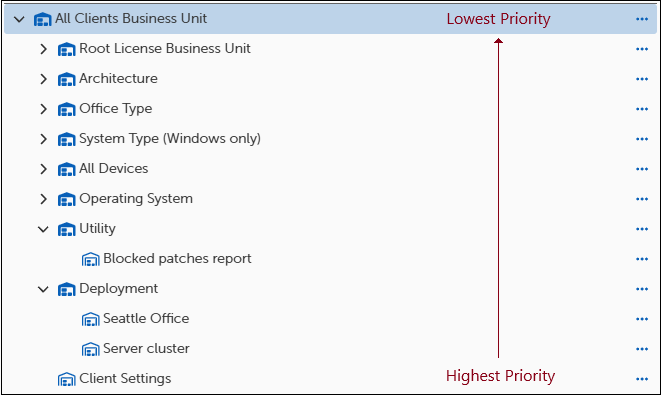
Business Units at the bottom level of the list have a **higher** priority than top-level business units. When a device belongs to multiple Business Units, deployment behavior is always governed by the highest-priority Business Unit.
For example, if a device belongs to both a top-level Business Unit and a bottom-level Business Unit, the device follows the settings defined in bottom-level. Even if a patch strategy targets the top-level in a deployment ring, the device still uses the settings from the higher-priority bottom-level Business unit.
 {% endhint %}
{% hint style="info" %}
When using Business Units with an Advanced Patching Strategy, ensure the Patch Deployment Bot for that strategy targets the same Business Units.
{% endhint %}
## Parent and Child Business Units
Business Unit objects use a parent-child hierarchy. This structure gives you the freedom to create patching hierarchies that match any endpoint landscape.
{% hint style="info" %}
Child Business Units may only contain devices that the Parent Business Unit also manages.
{% endhint %}
There is no functional difference between parent and child Business Units. The parent/child hierarchy exists solely to support settings inheritance. An inherited setting or process is indicated by a blue up-arrow, and inheritance is enabled by default. When overriding inheritance, deselect the blue up-arrow and this will enable the previously greyed out field.

### Organizing the Business Unit hierarchy
You can arrange the Business Unit view in hierarchies that meet the needs of your environment. Parent Business units pass attributes to child Business Units, so it is important to maintain those relationships where they exist.
### Create a Business Unit
Adaptiva provides default Business Unit templates. Except for the Root template, these templates can be copied and customized, or you can create new Business Units as needed. Child and Lab Business Units allow administrators to further refine and customize the patching environment.
Before creating any Business Units, review the [Business Units best practices](/patch/patching-fundamentals/business-units/business-units-best-practices.md).
In version 10.970 and later of OneSite Patch, there are several business unit templates that effectively target smaller subsets of devices in order to deploy patches more granularly. This takes an appropriate amount of randomly sampled devices and adds to the built-in Business Units.
For example, if you had 100 devices and selected **5% of All Devices (Built-in Pilot)**, this will randomly select 5 devices from all available devices and add it to this business unit.

{% hint style="info" %}
When creating a new Business Unit, and it is immediately scoped for membership (by default), it becomes the highest priority Business Unit. If you have not defined the Maintenance Window settings or the User Input Settings, this may override other settings in the hierarchy and cause unexpected software deployments or reboots.
{% endhint %}
{% hint style="info" %}
When using Business Units with an Advanced Patching Strategy, ensure the Patch Deployment Bot for that strategy targets the same Business Units.
{% endhint %}
## Parent and Child Business Units
Business Unit objects use a parent-child hierarchy. This structure gives you the freedom to create patching hierarchies that match any endpoint landscape.
{% hint style="info" %}
Child Business Units may only contain devices that the Parent Business Unit also manages.
{% endhint %}
There is no functional difference between parent and child Business Units. The parent/child hierarchy exists solely to support settings inheritance. An inherited setting or process is indicated by a blue up-arrow, and inheritance is enabled by default. When overriding inheritance, deselect the blue up-arrow and this will enable the previously greyed out field.

### Organizing the Business Unit hierarchy
You can arrange the Business Unit view in hierarchies that meet the needs of your environment. Parent Business units pass attributes to child Business Units, so it is important to maintain those relationships where they exist.
### Create a Business Unit
Adaptiva provides default Business Unit templates. Except for the Root template, these templates can be copied and customized, or you can create new Business Units as needed. Child and Lab Business Units allow administrators to further refine and customize the patching environment.
Before creating any Business Units, review the [Business Units best practices](/patch/patching-fundamentals/business-units/business-units-best-practices.md).
In version 10.970 and later of OneSite Patch, there are several business unit templates that effectively target smaller subsets of devices in order to deploy patches more granularly. This takes an appropriate amount of randomly sampled devices and adds to the built-in Business Units.
For example, if you had 100 devices and selected **5% of All Devices (Built-in Pilot)**, this will randomly select 5 devices from all available devices and add it to this business unit.

{% hint style="info" %}
When creating a new Business Unit, and it is immediately scoped for membership (by default), it becomes the highest priority Business Unit. If you have not defined the Maintenance Window settings or the User Input Settings, this may override other settings in the hierarchy and cause unexpected software deployments or reboots.
 {% endhint %}
1. Select **Asset Management > Business Units** in the left side navigation.
2. Select the right arrow to the left of any folder to expand the list of available templates.
3. Select the **ellipses (...)** then select **Save As**.
4. Save the template with a new title:
1. In the upper-left of the dialog, select **More**, and then select **Save As**.
2. Enter a new name for the template, and then select **Save as**. This returns you to a copy of the template with the new name.
#### General Settings
1. (Optional) Enter a **Description**.
2. Select **Browse** next to Evaluation Schedules.
For Business Units with dynamic membership that may change over time, evaluation schedules determine when to check the membership of a Business Unit. Dynamic membership can occur based on Location or Sensor scopes, where a device moves between locations or Sensor results change over time.
The Evaluation Schedules added here trigger Group Membership evaluations for this Business Unit to regularly check for group membership changes.

#### Business Unit Scopes
Business Unit Scopes define the rules used to find and include devices in a named Business Unit. Adaptiva supports using one or more scopes to create a Business Unit.
Groups (Platform level feature) and Business Units (OneSite Patch level feature) use the same architecture for scoping. For a list of scope definitions, please see our [Groups](https://docs.adaptiva.com/platform-guide/platform-features/assets/groups#group-scopes) page.

#### Select a Rollout Process
Customizing Rollout Processes is an advanced feature of Adaptiva. For more information, contact [Adaptiva Customer Support](https://www.adaptiva.com/support).

#### Maintenance Windows in Business Units
Business Units give you the flexibility to subdivide Maintenance Windows into deployment and reboot windows that can operate independently. Whether you want the deployment and reboot to happen in the same maintenance window or split them out into separate windows is your choice.
It is possible, however, to set rules that counteract each other. Here are a few things to watch out for:
* Inheritance: You should always keep inheritance in mind between parent and child business units when adjusting settings. The up-arrow to the left of each setting serves as a reminder that this business unit is inheriting settings from elsewhere.
* User Interaction Settings: At the user-interaction level, you can let users choose when they want to reboot. This setting might override any automatic reboots you have configured. Consult the table at [Configure Reboot Settings](https://docs.adaptiva.com/patch/advanced-settings/user-interaction-settings#configure-reboot-settings).
* Moving a client from one business unit to another: While you can do this, be aware that the client will inherit any rules from the new business unit. This often triggers an immediate reboot.
To set either Deployment Windows or Reboot Windows, see below:
1. Select **Browse** next to **Deployment Window** or **Reboot Window** and select the desired option or create a new window.
2. Click **OK**.

#### Add User Interaction Settings
Choose a User Interaction Setting for the devices in this Business Unit. These settings control how end users are notified about upcoming installations and reboots. For more information about User Interaction Settings, see [User Interaction Settings](https://github.com/AdaptivaDocs/docs/tree/main/patch/user-Interaction-settings.md).
1. Select **Browse** next to **User Interaction Setting** and select the desired option.
2. Click **OK**.

#### Add Approval Chains to a Business Unit
**Approval Chains** settings enable administrators to specify users who will receive patch approval requests for Business Units. You have the option of defining an approval chain for each type.
1. Select **Add...** next to the type of Approval chain you want to add.
2. Select an **Approval Chain** from the **Approval Chains** table.

#### Customer Extension Data
Customer Extension Data is an advanced feature of Adaptiva. The Customer Extension Data fields allow you to specify different key/value pairs for use in customized Patching Strategies, Deployment Chains, or Business Units when necessary to achieve different results.
Customer Extension Data fields relate directly to fields in a customized template. If you do not have customized templates with key/value pairs you can modify, you do not need to configure or use this feature.
If you want to create customized templates that use key/value pairs for some settings, contact [Adaptiva Customer Support](https://www.adaptiva.com/support).

#### Add a Notification Chain
Notification Chain settings exist in the object templates for Patching Strategies, Deployment Channels, and Business Units.
1. Select **Browse** next to **Notification Chain**. This opens the **Notifications Chain** dialog.
2. Select a **Notification Chain** from the table.
* To edit or create Notification Chains, see [Using Notification Chains](/patch/advanced-settings/chains.md).

#### Content Prestaging Settings
The Content Prestaging feature deploys content to devices ahead of the scheduled deployment, either pushing content to a location or allowing a client to pull content. Prestaging content makes the content available on the device locally when the deployment time arrives. This reduces the deployment time and minimizes the chances of missing service windows or having devices going offline before a content download finishes.
To configure these settings, see [Content Prestaging Settings](/patch/advanced-settings/content-prestaging.md).

#### Related Business Units
In this section, you can select associated Business Units to relate to your new Business unit. This lets you define Parent and Child business units and use a lab business unit for testing.
If inherited from a parent Business Unit, values merge with the custom lab values of the parent and supersede the parent values when they conflict.

#### Verify Business Unit Members
After saving the Business Unit, select **Show Members** to display the members of the Business Unit and verify that you have populated the Business Unit as you intend.
{% hint style="info" %}
Selecting Evaluate Now causes evaluation of the group membership rules to occur off schedule.
{% endhint %}
### Impact from Changing a Business Unit
When a situation arises where you need to change a business unit for any reason, keep in mind inheritance rules between parent and child business units. A change to a new parent may trigger immediate patching or reboot rules.
{% endhint %}
1. Select **Asset Management > Business Units** in the left side navigation.
2. Select the right arrow to the left of any folder to expand the list of available templates.
3. Select the **ellipses (...)** then select **Save As**.
4. Save the template with a new title:
1. In the upper-left of the dialog, select **More**, and then select **Save As**.
2. Enter a new name for the template, and then select **Save as**. This returns you to a copy of the template with the new name.
#### General Settings
1. (Optional) Enter a **Description**.
2. Select **Browse** next to Evaluation Schedules.
For Business Units with dynamic membership that may change over time, evaluation schedules determine when to check the membership of a Business Unit. Dynamic membership can occur based on Location or Sensor scopes, where a device moves between locations or Sensor results change over time.
The Evaluation Schedules added here trigger Group Membership evaluations for this Business Unit to regularly check for group membership changes.

#### Business Unit Scopes
Business Unit Scopes define the rules used to find and include devices in a named Business Unit. Adaptiva supports using one or more scopes to create a Business Unit.
Groups (Platform level feature) and Business Units (OneSite Patch level feature) use the same architecture for scoping. For a list of scope definitions, please see our [Groups](https://docs.adaptiva.com/platform-guide/platform-features/assets/groups#group-scopes) page.

#### Select a Rollout Process
Customizing Rollout Processes is an advanced feature of Adaptiva. For more information, contact [Adaptiva Customer Support](https://www.adaptiva.com/support).

#### Maintenance Windows in Business Units
Business Units give you the flexibility to subdivide Maintenance Windows into deployment and reboot windows that can operate independently. Whether you want the deployment and reboot to happen in the same maintenance window or split them out into separate windows is your choice.
It is possible, however, to set rules that counteract each other. Here are a few things to watch out for:
* Inheritance: You should always keep inheritance in mind between parent and child business units when adjusting settings. The up-arrow to the left of each setting serves as a reminder that this business unit is inheriting settings from elsewhere.
* User Interaction Settings: At the user-interaction level, you can let users choose when they want to reboot. This setting might override any automatic reboots you have configured. Consult the table at [Configure Reboot Settings](https://docs.adaptiva.com/patch/advanced-settings/user-interaction-settings#configure-reboot-settings).
* Moving a client from one business unit to another: While you can do this, be aware that the client will inherit any rules from the new business unit. This often triggers an immediate reboot.
To set either Deployment Windows or Reboot Windows, see below:
1. Select **Browse** next to **Deployment Window** or **Reboot Window** and select the desired option or create a new window.
2. Click **OK**.

#### Add User Interaction Settings
Choose a User Interaction Setting for the devices in this Business Unit. These settings control how end users are notified about upcoming installations and reboots. For more information about User Interaction Settings, see [User Interaction Settings](https://github.com/AdaptivaDocs/docs/tree/main/patch/user-Interaction-settings.md).
1. Select **Browse** next to **User Interaction Setting** and select the desired option.
2. Click **OK**.

#### Add Approval Chains to a Business Unit
**Approval Chains** settings enable administrators to specify users who will receive patch approval requests for Business Units. You have the option of defining an approval chain for each type.
1. Select **Add...** next to the type of Approval chain you want to add.
2. Select an **Approval Chain** from the **Approval Chains** table.

#### Customer Extension Data
Customer Extension Data is an advanced feature of Adaptiva. The Customer Extension Data fields allow you to specify different key/value pairs for use in customized Patching Strategies, Deployment Chains, or Business Units when necessary to achieve different results.
Customer Extension Data fields relate directly to fields in a customized template. If you do not have customized templates with key/value pairs you can modify, you do not need to configure or use this feature.
If you want to create customized templates that use key/value pairs for some settings, contact [Adaptiva Customer Support](https://www.adaptiva.com/support).

#### Add a Notification Chain
Notification Chain settings exist in the object templates for Patching Strategies, Deployment Channels, and Business Units.
1. Select **Browse** next to **Notification Chain**. This opens the **Notifications Chain** dialog.
2. Select a **Notification Chain** from the table.
* To edit or create Notification Chains, see [Using Notification Chains](/patch/advanced-settings/chains.md).

#### Content Prestaging Settings
The Content Prestaging feature deploys content to devices ahead of the scheduled deployment, either pushing content to a location or allowing a client to pull content. Prestaging content makes the content available on the device locally when the deployment time arrives. This reduces the deployment time and minimizes the chances of missing service windows or having devices going offline before a content download finishes.
To configure these settings, see [Content Prestaging Settings](/patch/advanced-settings/content-prestaging.md).

#### Related Business Units
In this section, you can select associated Business Units to relate to your new Business unit. This lets you define Parent and Child business units and use a lab business unit for testing.
If inherited from a parent Business Unit, values merge with the custom lab values of the parent and supersede the parent values when they conflict.

#### Verify Business Unit Members
After saving the Business Unit, select **Show Members** to display the members of the Business Unit and verify that you have populated the Business Unit as you intend.
{% hint style="info" %}
Selecting Evaluate Now causes evaluation of the group membership rules to occur off schedule.
{% endhint %}
### Impact from Changing a Business Unit
When a situation arises where you need to change a business unit for any reason, keep in mind inheritance rules between parent and child business units. A change to a new parent may trigger immediate patching or reboot rules.